> ## Documentation Index
> Fetch the complete documentation index at: https://data.ornn.com/docs/llms.txt
> Use this file to discover all available pages before exploring further.
# Manage API keys
> Create, view, and delete your Ornn Data API keys from the dashboard.
API keys are managed in the [data.ornn.com](https://data.ornn.com) dashboard, under **Settings → API Keys**.
API keys are only available on **full** accounts. Trial accounts (for example, sessions served from `trial.ornn.com`) can browse every chart and dataset in the dashboard but cannot create keys, so the API is not reachable from a trial account. Attempting to create a key returns `403 { "success": false, "error": "API keys are not available on trial accounts" }`. Contact your Ornn account owner to upgrade.
## Find your keys
Sign in to [data.ornn.com](https://data.ornn.com) and open **Settings → API Keys**. API Keys is a tab on the Settings page, so you can also deep-link to [data.ornn.com/settings?tab=api-keys](https://data.ornn.com/settings?tab=api-keys). The older `/api-keys` URL still works and redirects to the tab.
Each key you have issued is listed with:
| Column | What it shows |
| ------------- | --------------------------------------------------------------------------------------------------------------------------------------------------------------------------------------------------------------------------------------------------------- |
| **Name** | The label you gave the key when you created it |
| **Key** | A short identifier for the key, e.g. `sk_live_3f9a2b1c...`. The characters after the prefix come from a hash of the key, **not** from the key itself, so you cannot use this to reconstruct or recognise the original secret — match keys by name instead |
| **Created** | The date the key was issued |
| **Last used** | The date of the most recent request authenticated with the key, or `Never` |
| **Status** | `Active`. Only active keys are listed, so a deleted key disappears from the table rather than showing as inactive |
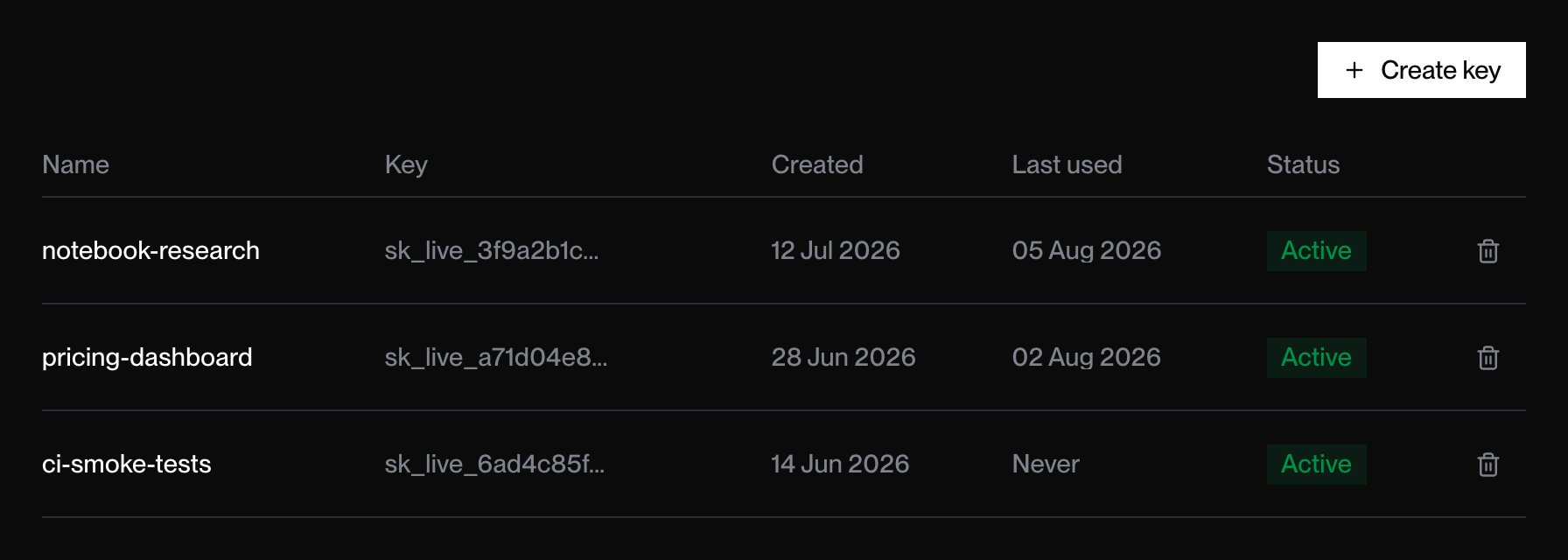 If you have not created a key yet, the tab shows **No active API keys** with a **Create key** button in its place.
## Create a key
Sign in to [data.ornn.com](https://data.ornn.com) and go to **Settings → API Keys**.
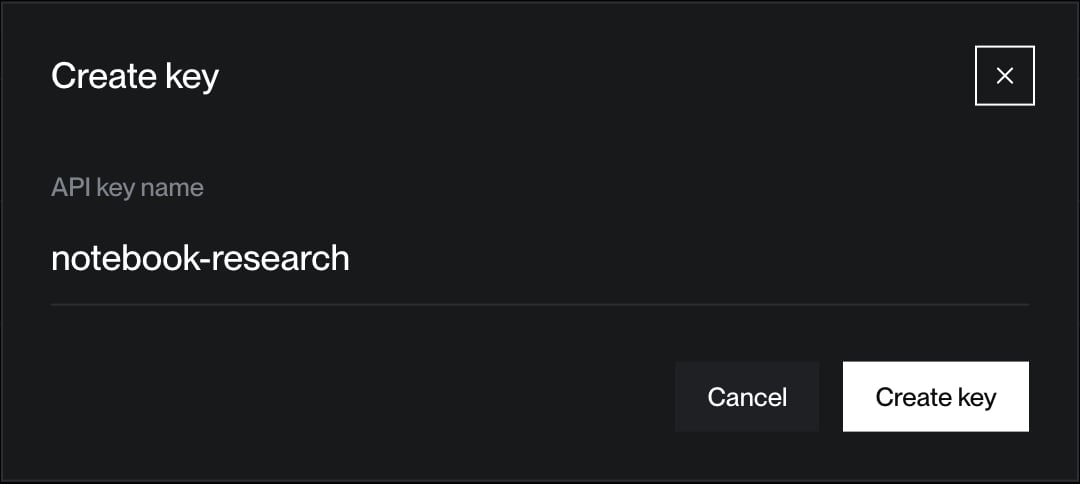
Click **Create key**, enter a descriptive name in **API key name** (e.g. `notebook-research`), and submit with **Create key**. A name is required — submitting an empty one shows *Please enter a name for your API key*.
Your full key (`sk_live_…`) is shown **once**, in the **API Key Created** dialog. Click **Copy & Close** to copy it to the clipboard; the button confirms with **Copied** and the dialog dismisses itself. Store the key in a secret manager or environment variable.
If you have not created a key yet, the tab shows **No active API keys** with a **Create key** button in its place.
## Create a key
Sign in to [data.ornn.com](https://data.ornn.com) and go to **Settings → API Keys**.
Click **Create key**, enter a descriptive name in **API key name** (e.g. `notebook-research`), and submit with **Create key**. A name is required — submitting an empty one shows *Please enter a name for your API key*.
Your full key (`sk_live_…`) is shown **once**, in the **API Key Created** dialog. Click **Copy & Close** to copy it to the clipboard; the button confirms with **Copied** and the dialog dismisses itself. Store the key in a secret manager or environment variable.
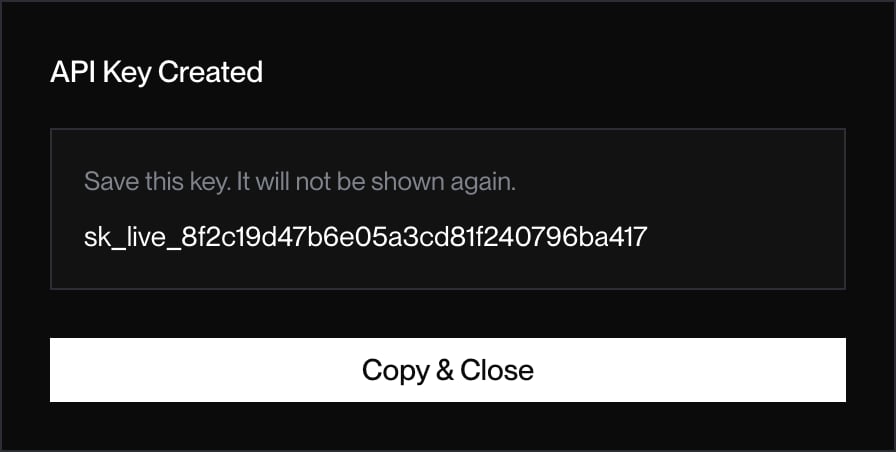 The full key appears only in the **API Key Created** dialog and cannot be retrieved afterward. The **Key** column is derived from a hash, so it will not help you identify a key you have misplaced — give each key a name you will recognise. If you lose a key, delete it and create a new one.
If your browser blocks clipboard access, the dialog stays open and shows *Copy failed. Select the key text manually.* — select the key and copy it by hand before dismissing the dialog with `Esc`.
New keys are read-only against the index endpoints. There are no scopes, expiry dates, or environments to choose at creation; scope a key by what you use it for and delete it when that use ends.
## Use a key
Pass it as a Bearer token on every request to a protected endpoint:
```bash theme={null}
curl "https://api.ornnai.com/api/gpu/H100%20SXM" \
-H "Authorization: Bearer YOUR_API_KEY"
```
A good practice is to keep it in an environment variable:
```python theme={null}
import os, requests
resp = requests.get(
"https://api.ornnai.com/api/gpu/H100 SXM",
headers={"Authorization": f"Bearer {os.environ['ORNN_API_KEY']}"},
)
```
## Delete a key
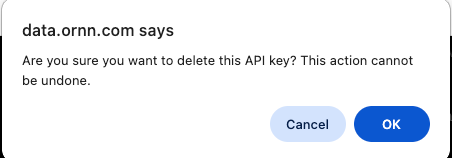
In **Settings → API Keys**, click the trash icon at the end of the key's row, then confirm in the browser prompt. The row disappears from the table and the key immediately returns `401 { "error": "Unauthorized", "message": "API key is inactive" }`. Deletion cannot be undone, so issue a new key to replace it.
The full key appears only in the **API Key Created** dialog and cannot be retrieved afterward. The **Key** column is derived from a hash, so it will not help you identify a key you have misplaced — give each key a name you will recognise. If you lose a key, delete it and create a new one.
If your browser blocks clipboard access, the dialog stays open and shows *Copy failed. Select the key text manually.* — select the key and copy it by hand before dismissing the dialog with `Esc`.
New keys are read-only against the index endpoints. There are no scopes, expiry dates, or environments to choose at creation; scope a key by what you use it for and delete it when that use ends.
## Use a key
Pass it as a Bearer token on every request to a protected endpoint:
```bash theme={null}
curl "https://api.ornnai.com/api/gpu/H100%20SXM" \
-H "Authorization: Bearer YOUR_API_KEY"
```
A good practice is to keep it in an environment variable:
```python theme={null}
import os, requests
resp = requests.get(
"https://api.ornnai.com/api/gpu/H100 SXM",
headers={"Authorization": f"Bearer {os.environ['ORNN_API_KEY']}"},
)
```
## Delete a key
In **Settings → API Keys**, click the trash icon at the end of the key's row, then confirm in the browser prompt. The row disappears from the table and the key immediately returns `401 { "error": "Unauthorized", "message": "API key is inactive" }`. Deletion cannot be undone, so issue a new key to replace it.
 ## Best practices
* **One key per app or environment** so you can delete narrowly.
* **Never commit keys** to source control or ship them in browser code.
* **Rotate** periodically by creating a new key and deleting the old one.
* **Watch Last used** to spot keys nothing depends on any more, and delete them.
## Best practices
* **One key per app or environment** so you can delete narrowly.
* **Never commit keys** to source control or ship them in browser code.
* **Rotate** periodically by creating a new key and deleting the old one.
* **Watch Last used** to spot keys nothing depends on any more, and delete them.