

Trial and Premium accounts, and members of a trial or Premium organization with no own grant, mint
sk_prem_ keys, capped at daily granularity with complete daily history — the same surface the MCP connector exposes. GPU hourly and neocloud site data stay Full-only. A Full account, or a member of a Full organization with no own grant, mints unrestricted sk_live_ keys. Keys minted through an organization are revoked when the organization’s access ends or the member leaves it.Find your keys
Sign in to data.ornn.com and open Settings → API Keys. API Keys is a tab on the Settings page, so you can also deep-link to data.ornn.com/settings?tab=api-keys. The older/api-keys URL still works and redirects to the tab.
Each key you have issued is listed with:
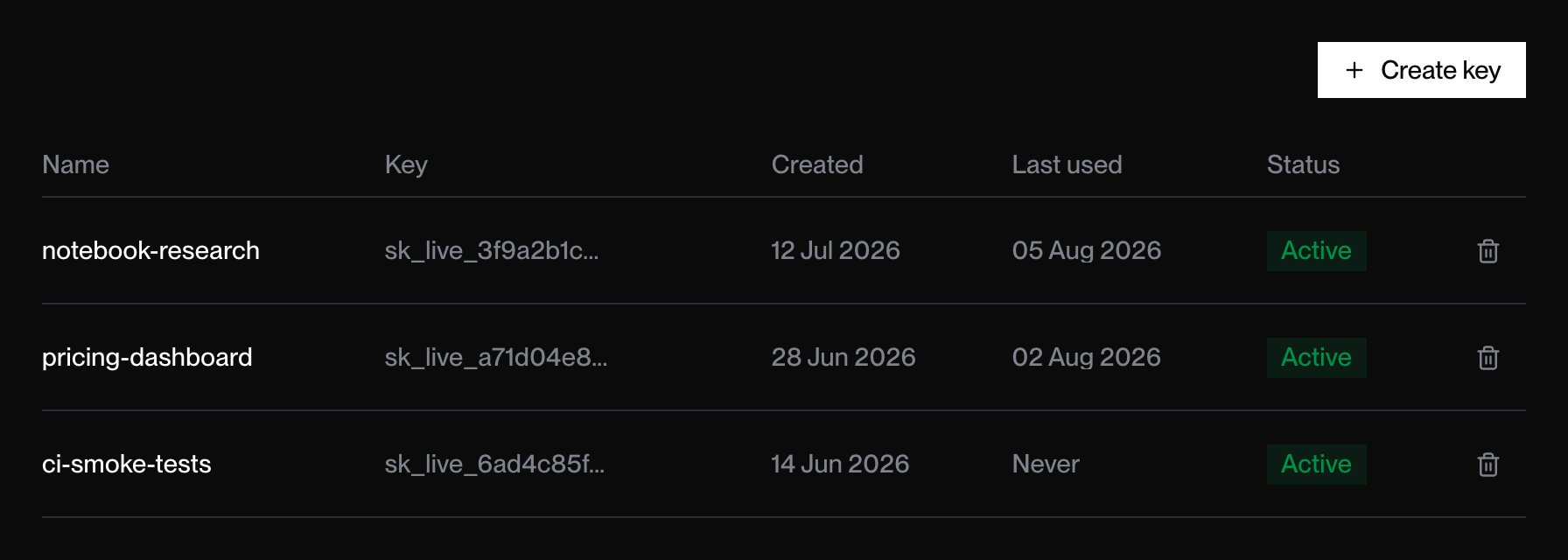
The API Keys tab. Keys are listed newest first; the trash icon at the end of a row deletes that key.
Create a key
1
Open the API Keys tab
Sign in to data.ornn.com and go to Settings → API Keys.
2
Name the key
Click Create key, enter a descriptive name in API key name (e.g.
notebook-research), and submit with Create key. A name is required — submitting an empty one shows Please enter a name for your API key.3
Copy it now
Your full key is shown once, in the API Key Created dialog. Trial and Premium keys begin
sk_prem_; Full keys begin sk_live_. Click Copy & Close to copy it to the clipboard; the button confirms with Copied and the dialog dismisses itself. Store the key in a secret manager or environment variable.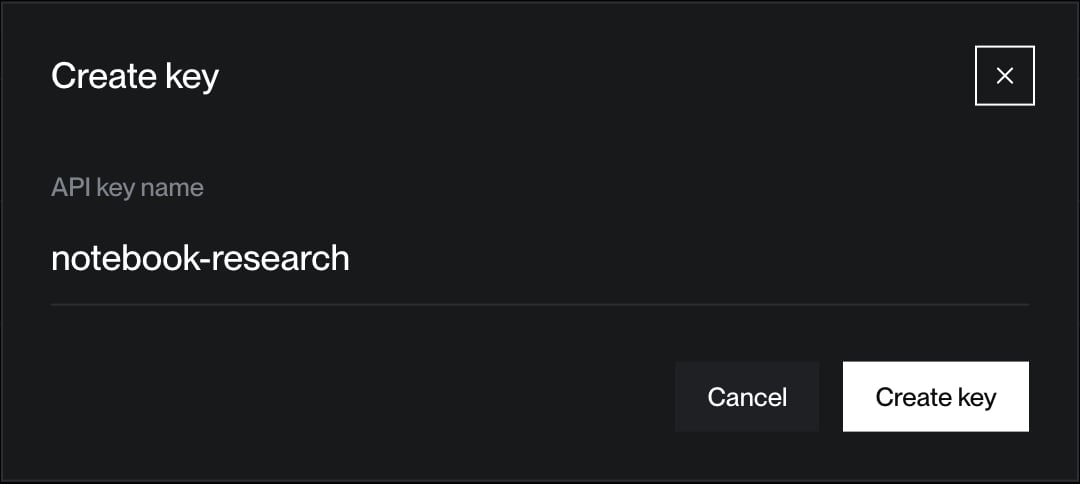
Naming a new key in the dashboard.
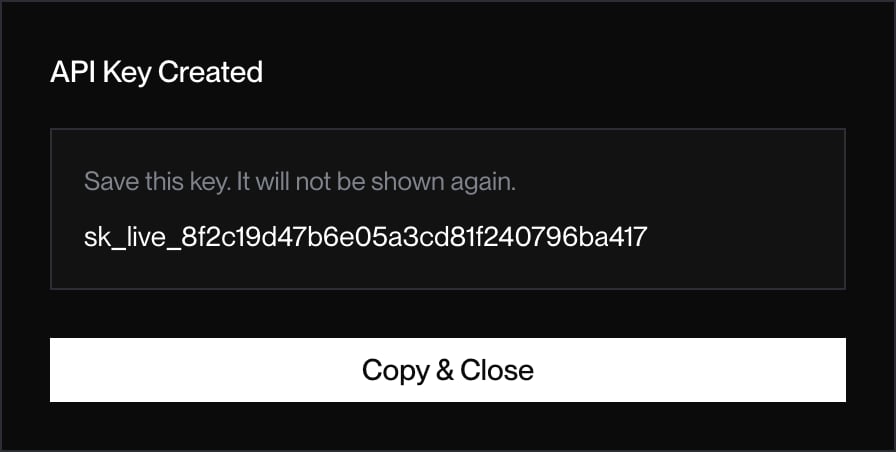
The full key, shown once. Copy & Close puts it on the clipboard and dismisses the dialog.
Esc.
New keys are read-only against the index endpoints. There are no scopes, expiry dates, or environments to choose at creation; scope a key by what you use it for and delete it when that use ends.
Use a key
Pass it as a Bearer token on every request to a protected endpoint:Delete a key
In Settings → API Keys, click the trash icon at the end of the key’s row, then confirm in the browser prompt. The row disappears from the table and the key immediately returns401 { "error": "Unauthorized", "message": "API key is inactive" }. Deletion cannot be undone, so issue a new key to replace it.
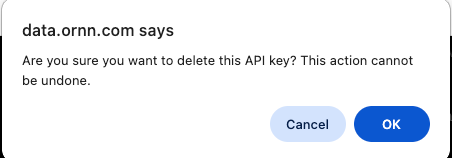
Confirming deletion. This action cannot be undone.
Best practices
- One key per app or environment so you can delete narrowly.
- Never commit keys to source control or ship them in browser code.
- Rotate periodically by creating a new key and deleting the old one.
- Watch Last used to spot keys nothing depends on any more, and delete them.